To sync an Outlook calendar with Google Calendar, publish the Outlook calendar and subscribe to that link in Google. One direction stays current. The other is a snapshot Google refreshes on its own schedule.
Work lives in one calendar. The family lives in the other. Every Wednesday you check both and hope you have not double-booked yourself.
Connecting them takes a few minutes. Which direction you connect them in matters more than most guides admit, because one direction is live and the other is a snapshot that quietly goes stale.
Key Takeaway: To see your Google Calendar inside Outlook, copy the secret iCal address from your Google calendar's settings and add it in Outlook using Add calendar, then Subscribe from web. To go the other way, copy the ICS link from Outlook and add it in Google Calendar under Other calendars, then From URL. Both directions are read-only subscriptions: you can see the events but not edit them from the other side. Only importing creates editable copies, and those never update again.
Which Direction Do You Actually Need
Before touching any settings, decide what you want to happen.
Subscribing creates a live link. The other calendar's events appear and keep updating when they change, but you cannot edit them from this side [1][3].
Importing copies events across once. They become fully editable, and they never update again. If the meeting moves, your copy does not [4].
Almost everyone wants to subscribe. Importing is for a one-off, like bringing a finished season's fixtures across. If what you actually want is a school's published term dates, that is a subscription too, and we cover it in how to add a school term dates calendar to Google Calendar.
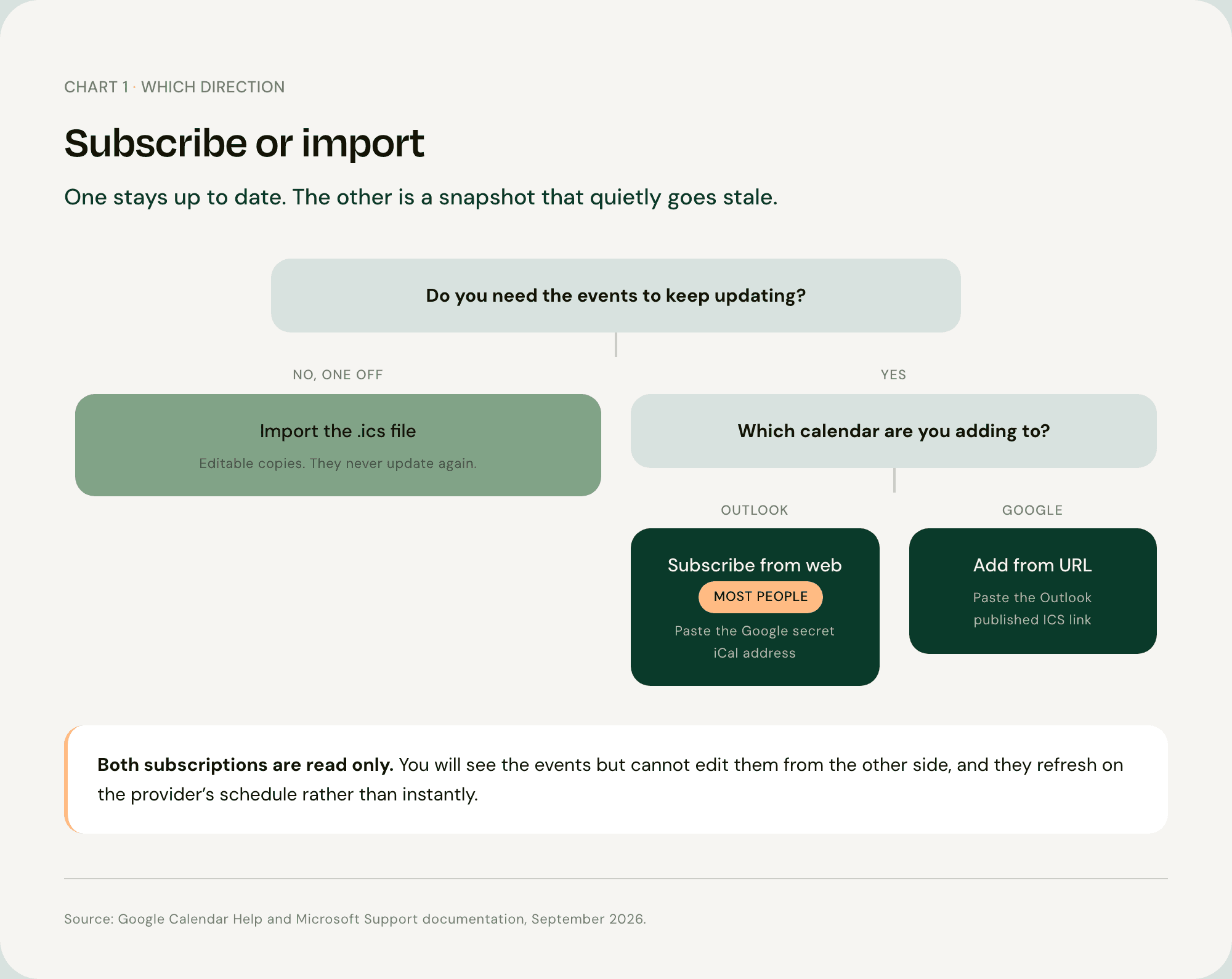
Adding Google Calendar to Outlook
Google gives every calendar a private address ending in .ics. Outlook can read it.
In Google Calendar on a computer, hover the calendar in the left-hand list, click the three dots, then Settings and sharing.
Scroll to Integrate calendar and copy the Secret address in iCal format [1].
In Outlook, go to Calendar, then Add calendar, then Subscribe from web.
Paste the address, give the calendar a name, and save [3].
Your Google events now appear in Outlook and keep updating.
One warning on step two. That secret address is a password in disguise. Anyone who has it can see the whole calendar without signing in. Do not paste it into a group chat, and if you ever share it by accident, reset it from the same settings page.
Adding Outlook Calendar to Google Calendar
The reverse works the same way.
In Outlook on the web, open Settings, then Calendar, then Shared calendars.
Under Publish a calendar, pick the calendar, choose the permission level and publish, then copy the ICS link [3].
In Google Calendar, click the plus beside Other calendars and choose From URL.
Paste the link and click Add calendar [2].
Why Your Work Calendar Might Not Let You
If Publish a calendar is missing or greyed out in Outlook, your employer has turned it off. Many organisations disable calendar publishing because it can expose internal meeting details outside the company.
That is a policy decision, not a fault, and no amount of retrying will change it. If you need this for work, ask your IT team rather than looking for a workaround.
How Long the Sync Takes, and Why It Feels Broken
This is where most of the frustration with this setup comes from, and it is worth setting expectations honestly.
Subscribed calendars do not update instantly. Both Google and Outlook poll external calendar feeds on their own schedule, and that can be several hours. Google's documentation is explicit that changes to a calendar you subscribed to by URL may take a while to show up [2].
So if you add a meeting in Outlook and it is not in Google Calendar ninety seconds later, nothing is wrong. Check again later in the day before you start troubleshooting.
If a calendar has genuinely stopped updating rather than lagging, that is a different problem and we cover it in how to fix Google Calendar not syncing.
What Read Only Actually Blocks
Worth being concrete, because "read-only" sounds smaller than it is.
You can see the events. You cannot move them, edit them, delete them, or accept an invitation from the subscribed copy. To change anything you go back to the calendar it lives in.
For a work-and-family overlay that is usually fine, because you rarely want to edit a work meeting from your family calendar anyway.
What Connecting Two Calendars Does Not Fix
Once both directions are set up, you can see everything in one place. Genuinely useful, and it is where most articles stop.
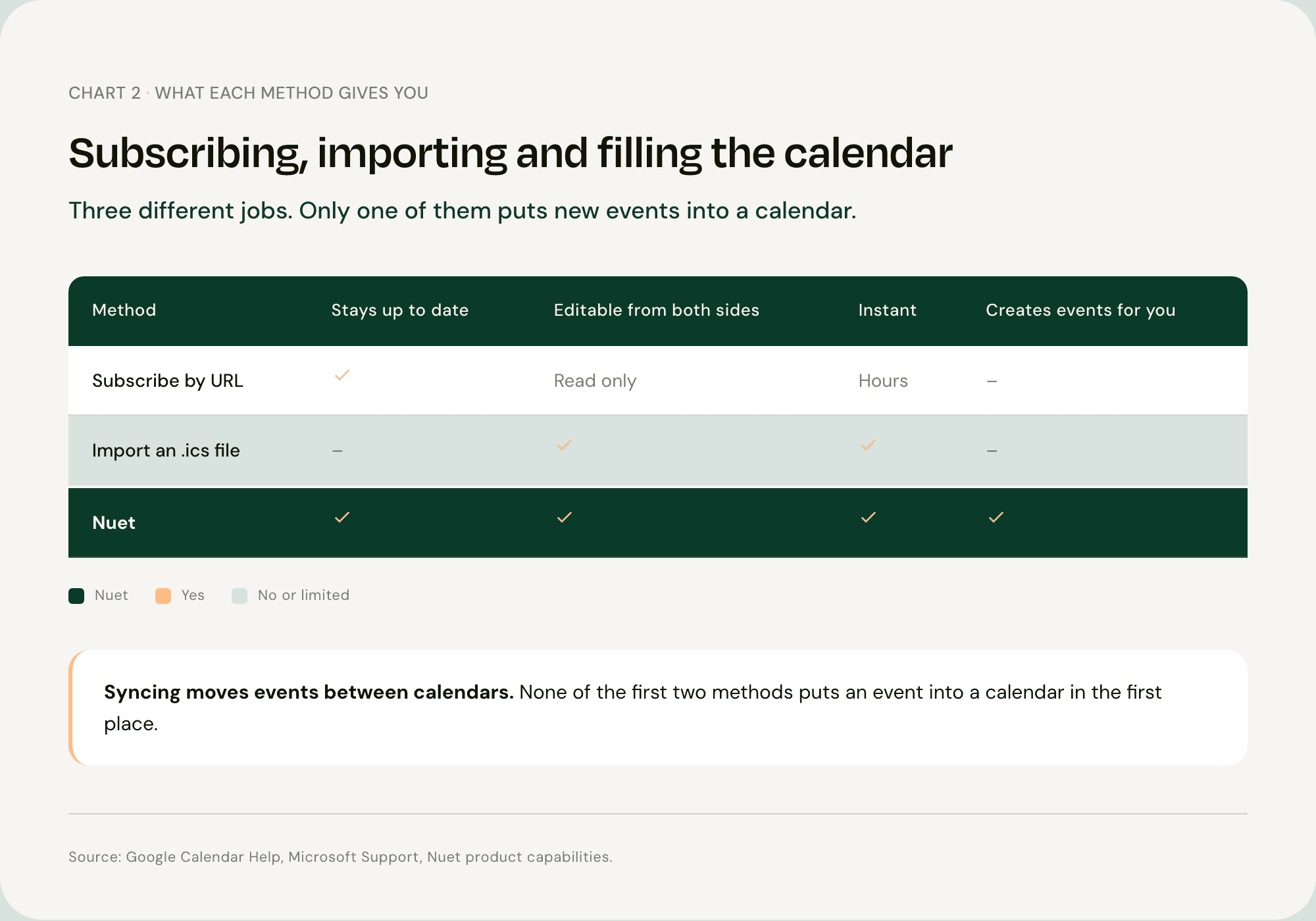
It is also worth being precise about what changed. You made existing events visible in a second place. You did not add anything to either calendar.
Every entry in both calendars still arrived because a person read something and typed it in. The school email about the non-uniform day, next term's dates attached as a PDF, the party invitation forwarded into a group chat. None of that syncs, because none of it is a calendar event yet. Somebody transcribes it.
That transcription is real work and it is unevenly shared. The Office for National Statistics puts women at 26 hours of unpaid work a week against 16 hours for men, a gap of around 60% [5].
Where the Events Come From in the First Place
The information that fills a family calendar rarely arrives as a calendar invitation. It arrives as an email, a letter at the bottom of a school bag, a photo of a poster, or something said in the car on the way home.
Nuet connects to your Gmail or Outlook inbox and creates those events for you, then writes them into the calendar you already use rather than asking you to move to a new one. It reads photos, PDFs and voice notes as well, so the letter in the bag becomes an entry without being retyped. You choose which senders it reads, and no emails are stored on external servers.
It does not replace the sync you have just set up. It sits above it.
The steps, in the direction that matters
Most households need the work calendar visible at home, not a full copy of home life inside Outlook.
Put the Outlook calendar into Google Calendar
In Outlook on the web, open Calendar, then Settings, then Shared calendars.
Publish the calendar you want the family to see, and copy the ICS link. If work IT has turned publishing off, stop here. Do not look for a bypass.
In Google Calendar on a computer, under Other calendars choose From URL and paste the link.
That Google view is read-only. Events added in Google do not travel back to Outlook. New events can take hours to appear, because Google refreshes a subscribed link on its own schedule.
Keep the work diary in Outlook. Put family dates on a separate calendar both phones already open. School emails still have to be copied by hand unless something picks the dates up and places them there.
FAQ
Q: Can Outlook and Google Calendar sync both ways? Not editably. You can subscribe each one to the other so both show all your events, but subscribed calendars are read-only. Editing still happens in the calendar an event actually lives in [1][3].
Q: Why is my Google Calendar not updating in Outlook? Subscribed calendars refresh on the provider's own schedule rather than instantly, and it can take several hours [2]. Wait before troubleshooting. If it has stopped entirely, check the address is still valid and has not been reset.
Q: Is the secret iCal address safe to share? No. Anyone holding it can view that calendar without signing in. Treat it like a password, and reset it from Google Calendar's settings if it leaks [1].
Q: Should I import or subscribe? Subscribe, in almost every case. Importing copies events once and they never update again, so a moved meeting stays wrong in your copy [4].
Q: Can I do this on my phone? Set it up on a computer, because both the Google secret address and Outlook's publish settings are hard to reach on mobile. Once connected, the calendars appear on your phone automatically. If you also want Outlook on an iPhone, see how to add your Outlook calendar to your iPhone.
Sources
[1] Google — Sync your calendar with computer programs [2] Google — Subscribe to someone else's calendar [3] Microsoft — Import or subscribe to a calendar in Outlook.com or Outlook on the web [4] Google — Import events to Google Calendar [5] Office for National Statistics — Women shoulder the responsibility of 'unpaid work' [6] Office for National Statistics — Time use in the UK
Frequently Asked Questions (People Also Ask)
How to sync Outlook calendar with Google calendar?
You can sync them by subscribing to the Outlook calendar via a sharing link (ICS) and adding it to your Google Calendar via URL. Note that this sync is often one-way and can have delays.
Why is my sync between Google and Outlook delayed?
Google Calendar only refreshes subscribed Outlook calendars every 12-24 hours. For real-time updates, you may need a third-party syncing tool or to use an integrated school newsletter to calendar solution for family events.