To add a school calendar to Google Calendar, subscribe to the school term dates feed or import the .ics file. Typing the dates in by hand is how a moved inset day gets missed.
The term dates letter arrives in July. There are four dates on it that actually matter, plus two INSET days, and by October one of them has moved.
If you typed them in by hand, you will not find out. That is one of the quieter ways parents end up missing a school date.
Key Takeaway: To add school term dates to Google Calendar, open Google Calendar on a computer, click the plus next to Other calendars, choose From URL, paste the ICS link your council or school publishes, and click Add calendar. Subscribing this way keeps updating if the school changes a date, whereas importing an ICS file creates a one-off copy that never changes again. Most UK councils publish term dates as a web page rather than a feed, so check GOV.UK for your local authority first.
Adding a Term Dates Feed to Google Calendar
If your school or council publishes a calendar feed, this takes about a minute and then looks after itself.
Finding the Feed Your School Publishes
Look in three places, in this order.
The school's own website. Usually under a Parents or Key Information section. What you want is a link ending in .ics, sometimes labelled "subscribe" or "add to calendar".
Your local authority's education pages. GOV.UK has a finder that takes you to the right council for your area [4]. If your school communicates through ParentMail or Arbor, the dates are often circulated there as well. Independent schools set their own dates and will not be listed there.
The school office. Worth a message. Some schools publish a feed through their management system and simply never mention it on the website.
Be prepared for the answer to be no. A lot of UK schools publish term dates as a web page or a PDF and nothing more. If that is you, skip to the section on what to do when there is no feed.
Adding It by URL
Once you have an .ics address:
Open Google Calendar on a computer. This part cannot be done in the mobile app.
On the left, click the plus next to Other calendars.
Choose From URL.
Paste the address and click Add calendar [1].
The calendar appears in your list, and on your phone shortly afterwards. If it is not showing on an iPhone, see how to sync Google Calendar with Apple Calendar.
One thing worth knowing before you decide it has failed: Google refreshes subscribed calendars on its own schedule, and that can take up to 24 hours. A feed that looks empty an hour after you added it is usually just waiting.
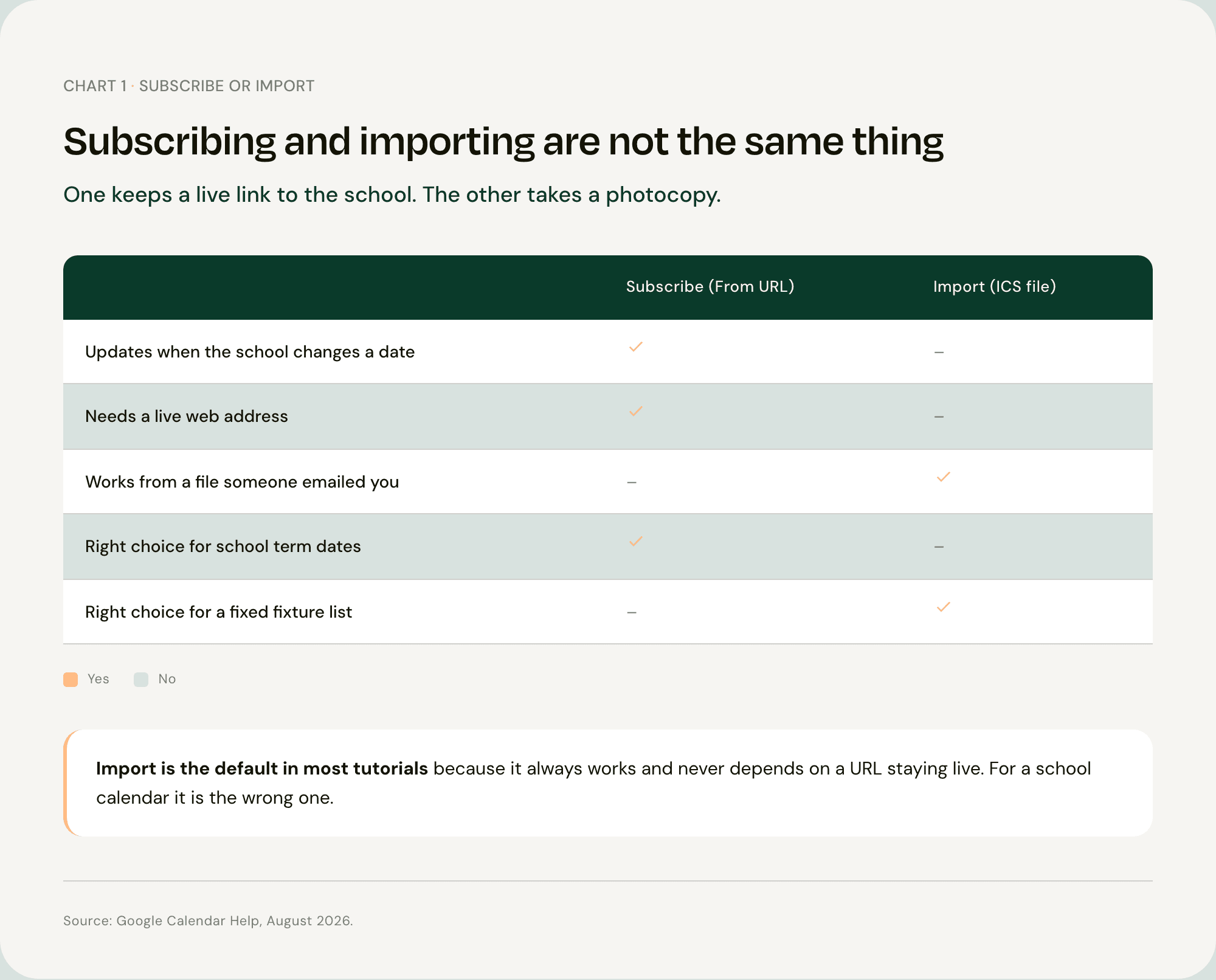
Subscribing and Importing Are Not the Same Thing
Most guides offer these as two equally good options. They are not, and for a school calendar the difference decides whether the thing works.
Subscribing keeps a live link to the source. The school moves an INSET day, and your calendar changes.
Importing takes a photocopy. The events land in your calendar and then never change again, no matter what the school does afterwards [1][2].
Import is the default in most tutorials, because it always works and never depends on a URL staying live. It is also exactly the wrong choice here. If you have ever had a stale INSET day sitting in your calendar while everyone else knew it had moved, this is why.
When to Import an ICS File Instead
Importing is right when there is nothing live to point at.
A fixture list for a season that is already fixed. A file the club emailed you. A one-off set of dates that nobody is going to revise. In those cases, open Google Calendar on a computer, go to Settings, then Import and export, choose the file and import it [2].
If you use Outlook rather than Google, the equivalent options are in the same place in Outlook's calendar settings [6], and getting that calendar onto your iPhone is a separate short job.
What to Do When There Is No Feed
This is the common case, so it deserves a real answer rather than a shrug.
Add the boundaries by hand. Six all-day events per year: term start and end for three terms, plus half terms and INSET days. It takes ten minutes once a year and it covers most of what a feed would have given you.
Ask the school office directly. Genuinely worth doing. Feeds often exist and go unmentioned.
Let something read the letter. If the dates arrived as a PDF or a photo of a letter, Nuet can extract them and create the events, which saves the ten minutes and the transcription errors that come with it.
Why a Term Dates Feed Still Will Not Catch Everything
Get the feed working and you have solved the easy half of the problem.
Term dates are published, scheduled and known months ahead. That is precisely why they can be published as a feed. The dates that actually catch parents out are none of those things.
World Book Day costumes. The trip consent form due Friday. Different kit for Thursday because the pitch is waterlogged. The class assembly you were told about in a Tuesday newsletter. None of that is in any feed, because none of it existed when the feed was written.
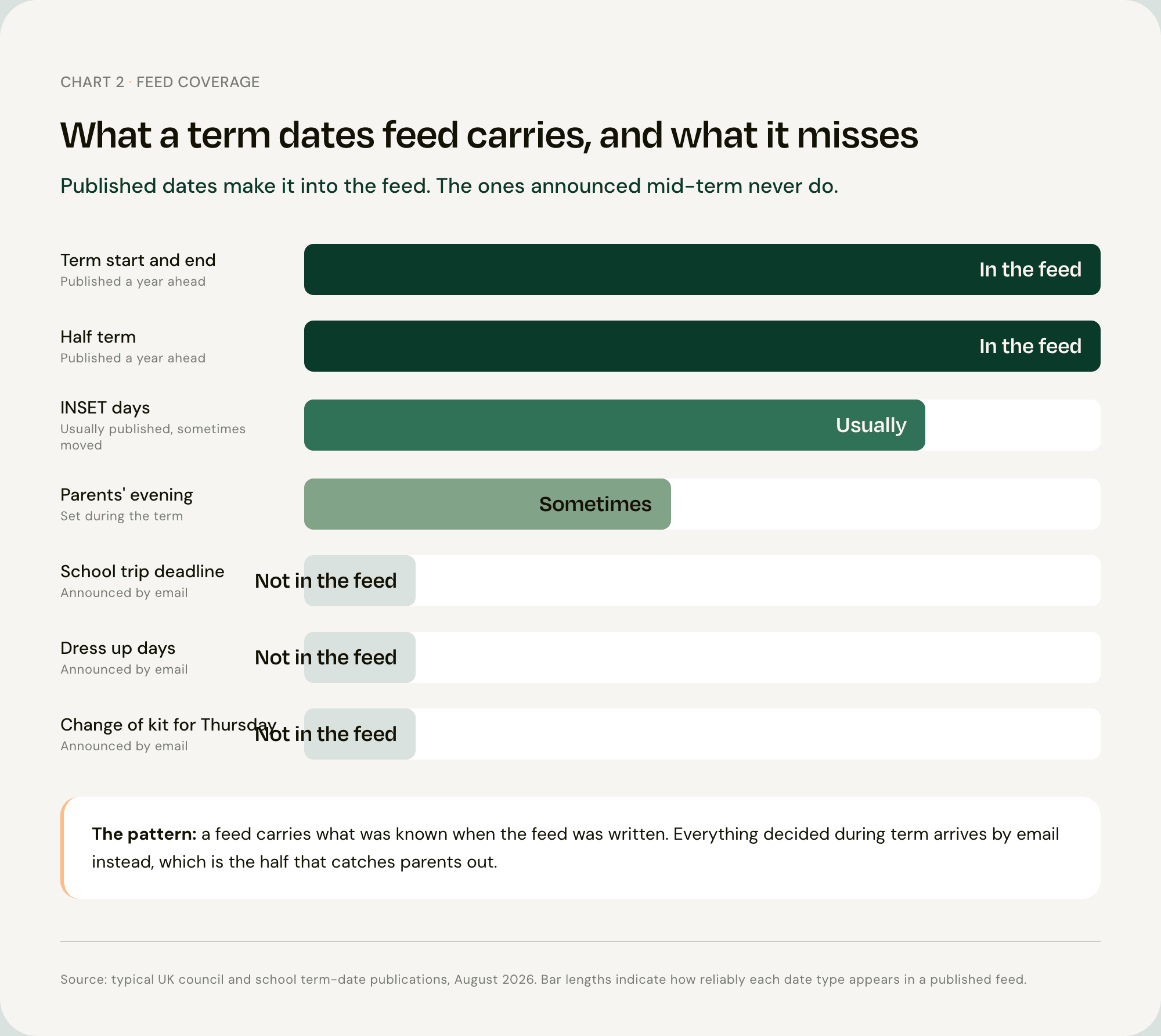
Those dates arrive by email, and somebody has to read the email, notice the date and type it in. That work is invisible and it is not evenly shared. The Office for National Statistics puts women at 26 hours of unpaid work a week against 16 hours for men [5].
Where the Rest of the Dates Come From
Nuet connects to your Gmail or Outlook inbox and creates events from what arrives there, including the school emails a term-dates feed will never carry. It reads PDFs, photos of letters and voice notes too.
Events go into the Google calendar you have just set up, not into a separate app. You choose which senders it reads, and no emails are stored on external servers.
Add the school calendar, not just the four term dates
A term dates feed covers the holidays and the inset days the school published. It does not cover the sports day, the early finish, or the trip letter that arrives in March. Subscribe to the feed so the skeleton of the year is in Google Calendar. Then keep a way to catch the dates that never make the feed.
FAQ
Q: How do I add an ICS link to Google Calendar? On a computer, open Google Calendar, click the plus beside Other calendars, choose From URL, paste the ICS address and click Add calendar. You cannot add a calendar by URL from the Google Calendar mobile app, which is why this has to be done on a desktop first. It then appears on your phone automatically [1].
Q: What is the difference between importing and subscribing to a calendar? Subscribing keeps a live connection, so if the school changes a date the change reaches you. Importing copies the events once and never updates again [1][2]. For school term dates, subscribe.
Q: Why has my subscribed calendar not updated? Google refreshes subscribed calendars on its own schedule and it can take up to 24 hours. If a change still has not appeared after that, check the feed address is still live, because schools sometimes republish at a new URL at the start of a year.
Q: Where do I find my school's term dates? Start with the school's own website, then your local authority's education pages. GOV.UK has a finder for term and holiday dates by local authority [4]. Independent schools set their own dates and will not appear there.
Q: Can I get school term dates into my calendar without a feed? Yes. If no feed exists you can add the term boundaries by hand, or use an app that reads the letter or PDF and creates the events for you. Nuet does the second, including for the emails that carry the dates a term-dates feed never contains.
Sources
[1] Google — Subscribe to someone else's calendar [2] Google — Import events to Google Calendar [3] Google — Sync your calendar with computer programs [4] GOV.UK — School term and holiday dates [5] Office for National Statistics — Women shoulder the responsibility of 'unpaid work' [6] Microsoft — Import or subscribe to a calendar in Outlook.com or Outlook on the web
Frequently Asked Questions
How do I sync school dates automatically?
Instead of typing term dates manually, you can use Nuet to automatically scan your school emails and sync events straight to your calendar. Nuet acts as your parent assistant, ensuring you never miss a non-uniform day or inset day.
Learn more about our Google Calendar integration and how we compare to manual tracking.