One parent keeps the family schedule in Google Calendar. The other opens the Calendar app on their iPhone and the football match that was definitely added on Tuesday is not there.
Usually the two calendars are connected. They are just connected in the wrong way, or only halfway.
Here is how to fix it properly, and how to spot the two settings that make people think it is broken when it is not.
Key Takeaway: To sync Google Calendar with Apple Calendar on an iPhone, add your Google account in Settings, then Apps, then Calendar, then Calendar Accounts, and turn Calendars on. This gives two-way sync, so events you add in either app appear in both. If some Google calendars are still missing after that, they need enabling separately at calendar.google.com/calendar/syncselect, which is the step most guides leave out.
Which Method You Actually Need
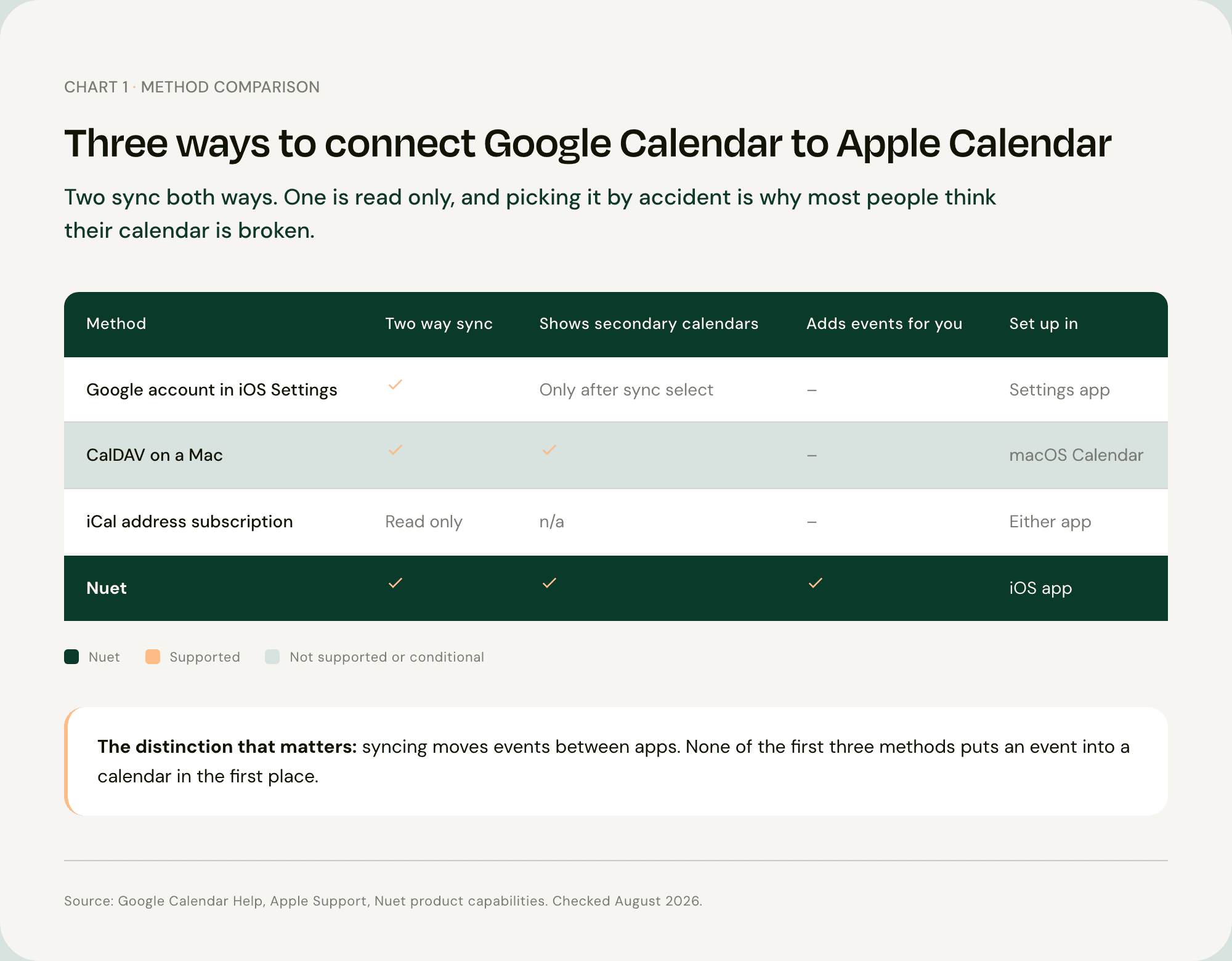
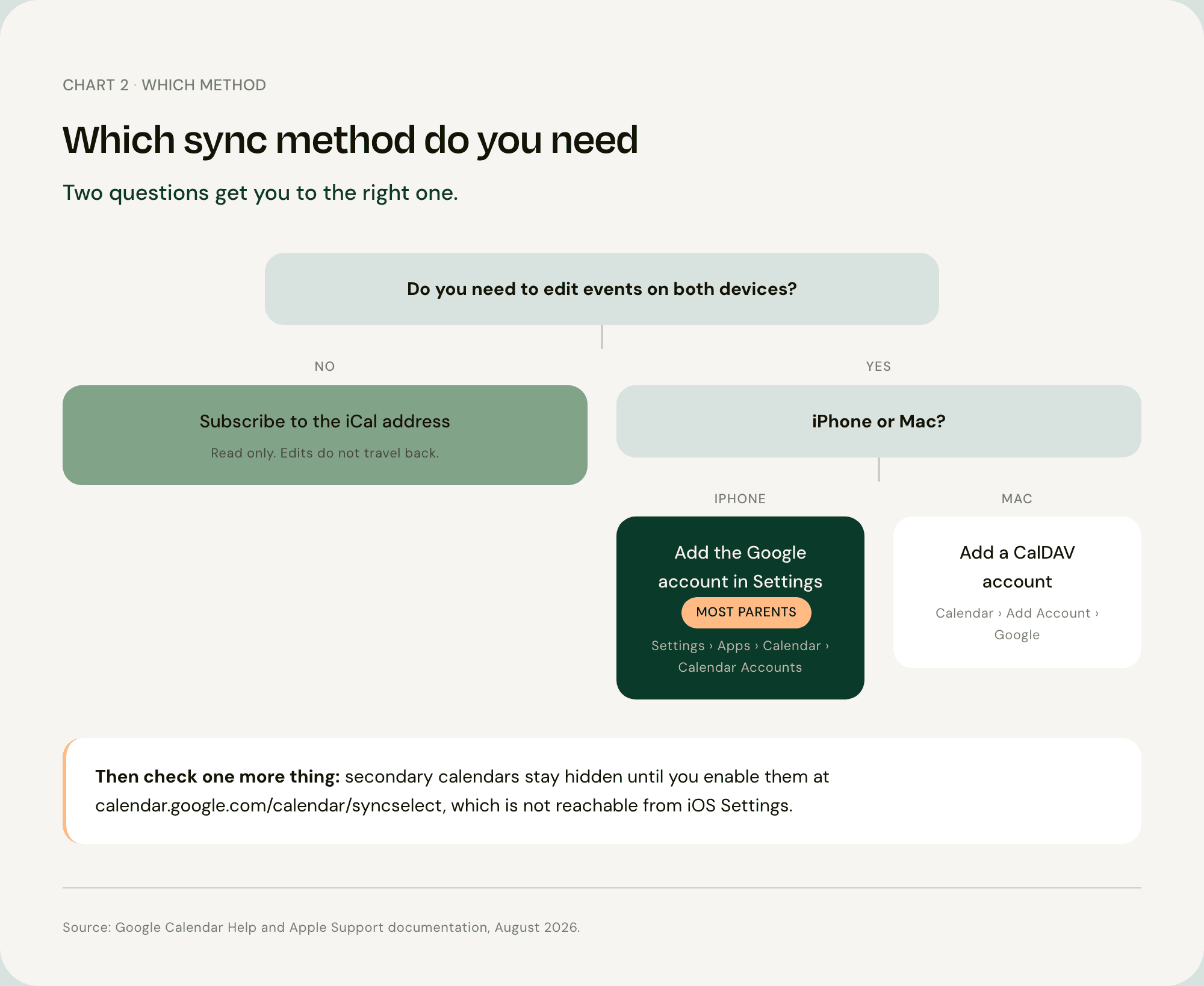
There are three ways to connect Google Calendar to Apple Calendar, and they are not interchangeable. Two sync both ways. One is read-only, and choosing it by accident is the most common reason people think their calendar is broken.
For most parents on an iPhone, it is the first method. Take that one and skip the rest.
Adding Your Google Account to iPhone
This is the default answer and the one you almost certainly want. It gives full two-way sync, so an event added in Apple Calendar appears in Google Calendar and the other way round [1].
Open Settings on your iPhone.
Tap Apps, then Calendar.
Tap Calendar Accounts, then Add Account.
Choose Google and sign in.
Turn Calendars on, then tap Save [2].
Open the Calendar app and your Google events should appear within a minute.
One note on the path above. In iOS 18 and later, account settings moved under Apps. Older guides send you to Settings, then Calendar, then Accounts, which no longer exists. If the instructions you are following do not match what is on screen, that is usually why.
Using CalDAV on a Mac
If you work on a Mac and want the same thing there, Apple Calendar can connect to Google directly [3].
Open the Calendar app on your Mac.
Go to Calendar, then Add Account.
Select Google and sign in.
That is the whole job. iPhone users do not need this step, and doing it does not change anything on the phone.
Subscribing to a Read Only Calendar
Google gives every calendar a secret address ending in .ics. You can paste that into Apple Calendar and the events will show up [4].
This is genuinely useful for one specific job: letting someone see a calendar without letting them change it. A childminder, a grandparent, an ex-partner.
It is also the trap. A subscription is one directional. Anything you add on the iPhone stays on the iPhone and never reaches Google. If you set this up months ago and have been quietly wondering why your partner never sees your events, this is almost certainly the reason.
Why Some Google Calendars Still Do Not Appear
Here is the part most guides skip, and it matters more than anything else on this page.
Adding your Google account connects the account. It does not necessarily bring across every calendar inside it. Secondary calendars, which for most families means the ones actually being used, are off by default on iOS. They are controlled from a separate Google page that you cannot reach from iOS Settings at all [1].
So the parent who followed a guide, watched a calendar appear, and reasonably assumed it had worked is exactly the parent who misses the school trip three weeks later. The setup looked successful. Half of it silently was not.
Turning On Secondary Calendars
On any device, open a browser and go to calendar.google.com/calendar/syncselect.
Tick every calendar you want on your iPhone.
Tap Save [1].
Give it a few minutes, then close and reopen the Calendar app on your phone. The missing calendars should now be listed under Calendars at the bottom of the screen.
This has to be done in a browser. There is no equivalent toggle in the iPhone Settings app, which is why it is so easy to miss.
Checking the Right Calendar Is Set as Default
The second cause of vanishing events is quieter still.
When you create an event on your iPhone, it goes into whichever calendar is set as the default. If that default is iCloud rather than Google, the event is saved perfectly and simply never travels to anyone else.
To check: Settings, then Apps, then Calendar, then Default Calendar. Pick the Google calendar your family actually shares.
If you have ever added something on your phone and had a partner insist it was never there, check this setting before you check anything else.
What Syncing Two Calendars Still Does Not Solve
Once both methods above are right, your calendars agree with each other. That is worth doing, and it is where most articles stop.
It is also worth being clear about what it achieves. Syncing moves events between apps. It does not put anything into them.
Every entry in that now perfectly synced calendar still got there because somebody read something and typed it in. The school email about the non-uniform day, the PDF newsletter with next term's dates on page three, the party invitation forwarded into a group chat. None of that syncs. Somebody transcribes it.
That work is real and it is unevenly shared. The Office for National Statistics puts women at 26 hours of unpaid work a week against 16 hours for men, a gap of around 60% [5]. Family logistics sits inside that gap, and calendar sync does not touch it.
Where Family Events Actually Arrive
The information that fills a family calendar rarely arrives as a calendar invitation. It arrives as an email, a letter at the bottom of a school bag, a photo of a poster, a forwarded message, or something someone says in the car.
Nuet connects to your Gmail or Outlook inbox and creates the events for you, then puts them into the calendar you already use rather than asking you to move to a new one. It reads photos, PDFs and voice notes too, so the letter in the bag can become an entry without being retyped.
It only reads the senders you choose, and no emails are stored on external servers.
It does not replace the sync you have just set up. It sits on top of it.
FAQ
Q: Does syncing Google Calendar with Apple Calendar work both ways? Yes, if you add your Google account through iOS Settings. Events you create in Apple Calendar appear in Google Calendar and the other way round. If you subscribed to a calendar using its iCal address instead, that connection is read-only and edits will not travel back [1][4].
Q: Why can I only see one of my Google calendars on my iPhone? Secondary calendars are off by default. Turn them on at calendar.google.com/calendar/syncselect in a browser, then wait a few minutes and reopen the Calendar app. This setting cannot be reached from iOS Settings [1].
Q: How long does Google Calendar take to sync with iPhone? Usually under a minute. If an event still has not appeared after a few minutes, check that the calendar it belongs to is enabled in sync-select, and that you are looking at the right account in the Calendar app's Calendars list.
Q: Do I need to delete Apple Calendar to use Google Calendar? No. They are not competing apps. Apple Calendar is the app on your iPhone, and Google Calendar can be one of the accounts it displays, sitting alongside iCloud.
Q: Can I sync a shared family calendar this way? Yes. A calendar someone has shared with you in Google appears in your sync-select list once you have accepted the invitation, and you can enable it for your iPhone from there. If you are weighing this against Apple Family Sharing, the same logic applies. Nuet works alongside both, adding events to whichever calendar you already use.
Sources
[1] Google — Add Google Calendar events to Apple Calendar [2] Apple — Set up mail, contacts, and calendar accounts on iPhone [3] Google — Sync your calendar with computer programs [4] Google — Subscribe to someone else's calendar [5] Office for National Statistics — Women shoulder the responsibility of 'unpaid work' [6] Office for National Statistics — Time use in the UK